
GA4 Setup Guide 2026: Step-by-Step Implementation
GA4 Setup Complete Guide 2026: Google Analytics↗ 4 Implementation & Tutorial
Looking to master GA4 setup? This comprehensive Google Analytics 4 tutorial covers everything from initial configuration to advanced tracking implementation. Whether you're migrating from Universal Analytics or setting up GA4 for the first time, this guide provides step-by-step instructions for complete GA4 implementation.
Google Analytics 4 (GA4) represents a fundamental shift in how businesses approach web analytics tracking. Unlike its predecessor, GA4 uses an event-based data model that provides more flexible, comprehensive insights into user behavior across websites and mobile applications. This complete GA4 setup guide will walk you through every aspect of implementation, ensuring you capture the data needed for informed decision-making.
📊 Ready to implement GA4? Skip to our step-by-step setup instructions and start tracking today.
Table of Contents
- Understanding GA4
- GA4 vs Universal Analytics Comparison
- Initial Setup
- Data Collection Configuration
- Event Tracking Setup
- E-commerce Tracking
- Conversion Configuration
- Audience and Reporting
- Integrations and Advanced Features
- Testing and Validation
- GA4 Best Practices
- FAQ
Understanding GA4
What is Google Analytics 4?
Google Analytics 4 is the next-generation analytics platform from Google, designed for the privacy-first, cross-platform digital landscape. Released in October 2020 and made the default property type in 2023, GA4 replaces Universal Analytics with a fundamentally different approach to data collection and analysis.
Core GA4 Philosophy:
- Event-based tracking: Every interaction is an event
- User-centric measurement: Focus on individual user journeys
- Privacy by design: Built for a cookieless future
- Cross-platform unified: Web and app data in one property
- AI-powered insights: Machine learning for predictions and anomalies
Why GA4 Matters for Your Business
The transition to GA4 isn't just a platform upgrade—it's a strategic necessity for modern analytics:
| Business Impact | GA4 Advantage |
|---|---|
| Privacy Compliance | Built-in consent mode and data deletion controls |
| Cross-Device Tracking | Unified user identification across platforms |
| Predictive Analytics | AI-powered purchase and churn predictions |
| Flexible Reporting | Custom explorations instead of rigid reports |
| Future-Proofing | Designed for the post-cookie era |
GA4 vs Universal Analytics Comparison
Understanding the differences between GA4 and Universal Analytics is crucial for successful migration and implementation.
Data Model Comparison
| Feature | Universal Analytics | Google Analytics 4 |
|---|---|---|
| Data Model | Session-based | Event-based |
| User Tracking | Client ID (cookies) | Multiple identifiers (User ID, Device ID, Modeling) |
| Cross-Platform | Requires separate properties | Native unified tracking |
| Machine Learning | Limited automated insights | Built-in predictive metrics |
| Reporting Interface | Pre-defined reports | Flexible Explorations + standard reports |
| Data Retention | 26-50 months (configurable) | 2-14 months (standard) |
| Hit Types | Pageview, event, transaction, timing | All interactions are events |
| Bounce Rate | Traditional bounce rate | Engagement rate (inverted metric) |
| Goals | Up to 20 goals per view | Unlimited conversions |
| E-commerce | Enhanced Ecommerce plugin | Built-in e-commerce events |
Key GA4 Concepts for Implementation
Event-Based Model: In GA4, everything is an event. This unified approach simplifies tracking:
| Universal Analytics | GA4 Equivalent |
|---|---|
| Pageview | page_view event |
| Event (category/action/label) | Custom event with parameters |
| Transaction | purchase event |
| Social interaction | share event |
| User timing | Custom event with timing parameter |
User Identification Hierarchy:
GA4 User Identification Priority:
1. User ID (signed-in users) - Most accurate
2. Google Signals (signed-in Google users)
3. Device ID (first-party cookies)
4. Modeling (for unidentifiable users) - Privacy-safe estimation
Data Streams: GA4 organizes data collection through streams:
- Web Stream: Websites and web applications
- iOS Stream: Apple mobile applications
- Android Stream: Android mobile applications
🔗 Related: Google Tag Manager Setup Guide - Learn how to implement GA4 through GTM↗ for maximum flexibility.
Initial Setup
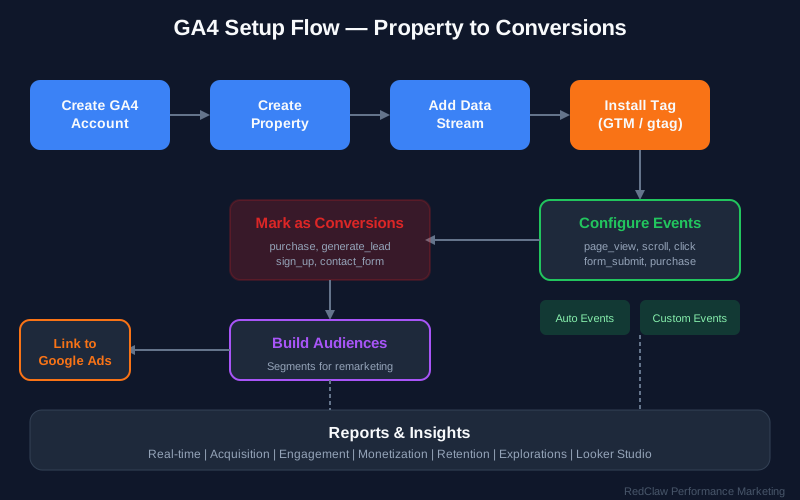
Creating Your GA4 Property
Follow these steps to create your Google Analytics 4 property:
Step 1: Account and Property Setup
- Navigate to analytics.google.com↗
- Click the gear icon (Admin) in the bottom left
- In the Property column, click "Create Property"
- Enter your property name (typically your business name)
- Select your reporting time zone
- Choose your currency for revenue reporting
- Click "Next"
Step 2: Business Information Configuration
- Select your industry category from the dropdown
- Choose your business size (number of employees)
- Select your intended use cases for GA4:
- Measure customer engagement
- Optimize advertising ROI
- Analyze user behavior
- Improve user experience
- Click "Create" to finalize the property
Step 3: Data Stream Configuration
- Select your platform type:
- Web: For websites and web apps
- iOS: For Apple mobile applications
- Android: For Android mobile applications
- For web streams:
- Enter your website URL
- Enter your stream name
- Enable Enhanced Measurement (recommended)
- Click "Create stream"
- Copy your Measurement ID (G-XXXXXXXXXX format)
Installing GA4: Three Methods
Choose the installation method that best fits your technical setup:
Method 1: Global Site Tag (gtag.js)
Direct implementation for simple setups:
<!-- Google tag (gtag.js) - Place in <head> of all pages -->
Pros: Simple implementation, no additional tools needed Cons: Harder to maintain, requires code changes for updates
Method 2: Google Tag Manager (Recommended)
The professional approach for scalable tracking:
-
Create GA4 Configuration Tag:
- Tag Type: Google Analytics: GA4 Configuration
- Measurement ID: Your G-XXXXXXXXXX ID
- Trigger: All Pages
-
Publish Your Container:
- Test in Preview mode first
- Submit and publish changes
Pros: Centralized management, version control, no code changes needed Cons: Requires GTM knowledge, additional tool to manage
| Installation Method | Best For | Complexity | Flexibility |
|---|---|---|---|
| gtag.js | Simple websites, single-page sites | Low | Limited |
| Google Tag Manager | Complex sites, frequent updates | Medium | High |
| CMS Integration | WordPress, Shopify, Wix users | Low | Medium |
Method 3: CMS Integration
WordPress GA4 Setup:
- Install GA plugin (Site Kit by Google, MonsterInsights, or ExactMetrics)
- Connect your Google account
- Select your GA4 property
- Verify tracking in Real-time reports
Shopify GA4 Setup:
- Go to Online Store → Preferences
- Enter your GA4 Measurement ID in the Google Analytics section
- Enable Enhanced Ecommerce for transaction tracking
Wix GA4 Setup:
- Marketing & SEO↗ → Marketing Integrations
- Connect Google Analytics
- Enter your Measurement ID
📊 Need help with GA4 setup? Our team provides professional GA4 implementation services for businesses of all sizes.
GA4 Configuration Checklist
Basic Setup Verification:
- GA4 property created with correct time zone and currency
- Data stream configured for your platform
- Measurement ID noted (G-XXXXXXXXXX format)
- Tracking code installed on all pages
- Real-time data appearing in reports
- Enhanced Measurement enabled
Advanced Setup Preparation:
- Cross-domain tracking requirements identified
- User ID implementation strategy planned
- Custom dimensions and metrics documented
- Data retention settings configured
- Internal traffic filters created
- Google Signals enabled (where compliant)
Data Collection Configuration
Enhanced Measurement Setup
Enhanced Measurement automatically tracks common user interactions without additional code:
| Enhanced Feature | Description | When It Fires | Recommended Setting |
|---|---|---|---|
| Page views | Automatic page tracking | On every page load | ✅ Enable |
| Scrolls | Scroll depth tracking | When user reaches 90% depth | ✅ Enable |
| Outbound clicks | External link clicks | Click on link to external domain | ✅ Enable |
| Site search | Internal search tracking | Search query parameter detected | ✅ Enable |
| Video engagement | YouTube video interactions | Play, pause, complete events | ✅ Enable |
| File downloads | Download link tracking | Click on common file extensions | ✅ Enable |
| Form interactions | Form engagement tracking | Form start and submit events | ⚠️ Review* |
| Page changes | Single-page app navigation | History API changes | ✅ Enable for SPAs |
*Form interactions may generate excessive events on some sites—test before enabling in production.
Configure Enhanced Measurement:
- Admin → Data Streams → Select your web stream
- Click the gear icon under "Enhanced measurement"
- Toggle features on/off as needed
- Click "Save"
Data Retention and Privacy Settings
Data Retention Configuration:
| Setting | Options | Recommendation |
|---|---|---|
| Event Data Retention | 2 months, 14 months | 14 months (maximum) |
| Reset User Data | On request, Never | Based on privacy policy |
| User-ID Data | 2 months, 14 months | 14 months |
To Configure: Admin → Data Settings → Data Retention
Privacy Controls:
- Consent Mode: Respects user consent choices
- Data Deletion: User-level data removal
- IP Anonymization: Automatic in GA4
- Ads Personalization: Configurable by region
Google Signals Configuration
Google Signals enables powerful cross-device tracking and audience features:
Benefits of Enabling Google Signals:
- Cross-device user tracking
- Demographics reporting (age, gender)
- Interest category data
- Remarketing audience creation
- Enhanced advertising reporting
Enable Google Signals:
- Admin → Data Settings → Data Collection
- Click "Get Started" under Google Signals
- Accept terms of service
- Toggle "Enable Google Signals" to ON
Important Privacy Note: Google Signals requires user consent in many jurisdictions (GDPR, CCPA). Ensure your consent management platform is properly configured.
Data Filters Implementation
Internal Traffic Filter: Exclude your team's activity from reports:
-
Define Internal Traffic:
- Admin → Data Streams → Web Stream Details
- Click "Configure Tag Settings"
- Click "Show all" → "Define Internal Traffic"
- Add IP addresses or IP ranges for your office/VPN
-
Create Data Filter:
- Admin → Data Settings → Data Filters
- Click "Create Filter"
- Filter Name: "Exclude Internal Traffic"
- Filter Type: Internal traffic
- Filter Operation: Exclude
- Traffic Type: internal (matches your definition)
Developer Traffic Filter: Automatically exclude debug mode traffic:
- Create filter for "Developer Traffic"
- Set to exclude when "debug_mode" parameter is true
Event Tracking Setup
Automatically Collected Events
GA4 automatically tracks these events without configuration:
| Event Name | Trigger Condition | Use Case |
|---|---|---|
page_view | Page loads or history state changes | Basic traffic measurement |
session_start | New session begins | Session counting |
first_visit | User's first visit to property | New user identification |
user_engagement | User engages with page (10+ seconds) | Engagement measurement |
scroll | 90% vertical scroll depth | Content engagement |
click | Outbound link clicks | External navigation tracking |
view_search_results | Site search performed | Search behavior analysis |
video_start | Video playback begins | Video engagement start |
video_complete | Video finishes playing | Video completion tracking |
file_download | File download initiated | Content download tracking |
form_start | Form interaction begins | Form engagement start |
form_submit | Form successfully submitted | Form completion tracking |
Recommended Events for GA4
Implement these events for comprehensive tracking across common business scenarios:
E-commerce Events
// View item details
gtag('event', 'view_item', {
    currency: 'USD',
    value: 99.99,
    items: [{
        item_id: 'SKU_12345',
        item_name: 'Premium Widget Pro',
        item_category: 'Widgets',
        item_category2: 'Professional Grade',
        item_brand: 'WidgetCo',
        price: 99.99,
        quantity: 1
    }]
});

// Add to cart action
gtag('event', 'add_to_cart', {
    currency: 'USD',
    value: 99.99,
    items: [{
        item_id: 'SKU_12345',
        item_name: 'Premium Widget Pro',
        item_category: 'Widgets',
        price: 99.99,
        quantity: 1
    }]
});

// Begin checkout process
gtag('event', 'begin_checkout', {
    currency: 'USD',
    value: 199.98,
    coupon: 'SUMMER20',
    items: [{
        item_id: 'SKU_12345',
        item_name: 'Premium Widget Pro',
        price: 99.99,
        quantity: 2
    }]
});

// Complete purchase
gtag('event', 'purchase', {
    transaction_id: 'T_12345',
    affiliation: 'Online Store',
    value: 199.98,
    tax: 16.00,
    shipping: 10.00,
    currency: 'USD',
    coupon: 'SUMMER20',
    items: [{
        item_id: 'SKU_12345',
        item_name: 'Premium Widget Pro',
        item_category: 'Widgets',
        item_brand: 'WidgetCo',
        price: 99.99,
        quantity: 2
    }]
});
Lead Generation Events
// Lead form submission
gtag('event', 'generate_lead', {
    currency: 'USD',
    value: 50.00  // Estimated lead value
});

// Contact form submission
gtag('event', 'submit_form', {
    form_id: 'contact_form',
    form_name: 'Contact Us',
    form_destination: '/thank-you-contact'
});
User Engagement Events
// User registration
gtag('event', 'sign_up', {
    method: 'email'
});

// User login
gtag('event', 'login', {
    method: 'google'
});

// Content share
gtag('event', 'share', {
    method: 'facebook',
    content_type: 'article',
    item_id: 'article_123'
});
Custom Events in GA4
Create custom events for business-specific tracking needs:
When to Use Custom Events:
- Business-specific user actions not covered by recommended events
- Unique funnel stages in your user journey
- Feature usage tracking for product analytics
- A/B test variant tracking
- Error and exception monitoring
Custom Event Implementation:
// SaaS trial start tracking
gtag('event', 'trial_started', {
    plan_type: 'premium',
    trial_length: '14_days',
    source: 'pricing_page',
    coupon_applied: 'TRIAL50'
});

// Feature usage tracking
gtag('event', 'feature_used', {
    feature_name: 'advanced_export',
    feature_category: 'reporting',
    user_tier: 'professional'
});

// Content engagement tracking
gtag('event', 'article_completed', {
    article_id: 'ga4-setup-guide',
    article_category: 'analytics',
    time_spent_seconds: 420,
    scroll_depth: 100
});
GA4 Event Naming Best Practices:
| ✅ Good | ❌ Avoid |
|---|---|
trial_started | Trial Started (no spaces) |
pricing_page_view | pricingPageView (use snake_case) |
video_played | videoPlayed (be consistent) |
error_occurred | error (be descriptive) |
button_click | click (specify context) |
🔗 Related: Event Tracking Strategy Guide - Learn how to design a comprehensive event tracking plan for your business.
E-commerce Tracking
Complete E-commerce Event Funnel
Track the entire customer journey with these GA4 e-commerce events:
| Event | Funnel Stage | Required Parameters | Optional Parameters |
|---|---|---|---|
view_item_list | Browse/Search | items, item_list_name | item_list_id |
select_item | Product Selection | items, item_list_name | index |
view_item | Product Detail | items | - |
add_to_cart | Add to Cart | items, value, currency | - |
add_to_wishlist | Wishlist | items, value, currency | - |
remove_from_cart | Cart Removal | items, value, currency | - |
view_cart | Cart Review | items, value, currency | - |
begin_checkout | Checkout Start | items, value, currency | coupon |
add_shipping_info | Shipping Selected | items, value, shipping_tier | - |
add_payment_info | Payment Selected | items, value, payment_type | - |
purchase | Order Complete | transaction_id, items, value | tax, shipping, coupon |
refund | Order Refunded | transaction_id | items, value |
Item Parameter Specifications
Standard Item Structure for GA4:
{
    item_id: 'SKU_12345',              // Required: Unique product ID
    item_name: 'Premium Widget Pro',    // Required: Product name
    item_category: 'Widgets',           // Recommended: Primary category
    item_category2: 'Professional',     // Optional: Sub-category
    item_category3: 'Power Tools',      // Optional: Third level
    item_category4: 'Equipment',        // Optional: Fourth level
    item_category5: 'Industrial',       // Optional: Fifth level
    item_brand: 'WidgetCo',             // Recommended: Brand name
    price: 99.99,                       // Required: Unit price
    quantity: 2,                        // Required for purchase: Quantity
    item_variant: 'Blue / Large',       // Optional: Variant details
    item_list_name: 'Search Results',   // Optional: List context
    item_list_id: 'search_results_001', // Optional: List identifier
    index: 1,                           // Optional: Position in list
    coupon: 'WIDGET10',                 // Optional: Item-level coupon
    discount: 10.00,                    // Optional: Item-level discount
    affiliation: 'Partner Store',       // Optional: Product affiliation
    location_id: 'CHI_001',             // Optional: Store location
    item_group_id: 'WGT_123'            // Optional: Product group
}
Purchase Event Complete Example
gtag('event', 'purchase', {
    // Transaction Details
    transaction_id: 'T_12345',          // Required: Unique order ID
    affiliation: 'Online Store',         // Optional: Store name
    value: 299.97,                       // Required: Total value
    tax: 24.00,                          // Optional: Tax amount
    shipping: 15.00,                     // Optional: Shipping cost
    currency: 'USD',                     // Required: Currency code
    coupon: 'SPRING20',                  // Optional: Order coupon

    // Items Array
    items: [
        {
            item_id: 'SKU_12345',
            item_name: 'Premium Widget',
            item_category: 'Widgets',
            item_brand: 'WidgetCo',
            price: 99.99,
            quantity: 2,
            item_variant: 'Blue'
        },
        {
            item_id: 'SKU_67890',
            item_name: 'Widget Accessory Kit',
            item_category: 'Accessories',
            item_brand: 'WidgetCo',
            price: 49.99,
            quantity: 2,
            coupon: 'ACCESSORY5'
        }
    ]
});
📊 Need e-commerce tracking help? Get expert GA4 e-commerce implementation for your online store.
Conversion Configuration
Setting Up GA4 Conversions
Conversions in GA4 are events marked as important business goals:
How to Mark Events as Conversions:
- Navigate to Admin → Events
- Locate the event you want to convert
- Toggle the "Mark as conversion" switch
- The event appears in Conversions reports within 24 hours
Common GA4 Conversion Events:
| Business Type | Recommended Conversions |
|---|---|
| E-commerce | purchase, add_to_cart, begin_checkout |
| Lead Generation | generate_lead, submit_form, phone_call |
| SaaS | trial_started, subscription_purchased, upgrade |
| Content/Media | subscription_signup, content_engagement |
| Marketplace | listing_created, seller_signup, transaction_complete |
Conversion Value Configuration
Assign monetary values to non-purchase conversions for ROAS analysis:
// Lead generation with estimated value
gtag('event', 'generate_lead', {
    currency: 'USD',
    value: 150.00  // Average lead value based on close rate
});

// Trial start with projected LTV
gtag('event', 'trial_started', {
    currency: 'USD',
    value: 500.00  // Projected lifetime value
});
Attribution Settings in GA4
Configure how conversion credit is assigned:
Attribution Models:
- Data-driven: Algorithmic attribution (recommended)
- Paid and organic last click: Last non-direct touch
- Cross-channel last click: Last touch across all channels
Conversion Windows:
| Conversion Type | Default Window | Recommended |
|---|---|---|
| Acquisition events | 30 days | 30 days |
| All other events | 90 days | 90 days |
| Engaged sessions | 1 day | 1 day |
Configure Attribution: Admin → Attribution Settings → Reporting Attribution Model
Audience and Reporting
GA4 Audience Creation
Built-in Audiences:
- All users
- Purchasers
- 7-day active users
- 30-day active users
Custom Audience Types:
| Audience Type | Use Case | Example |
|---|---|---|
| Event-based | Users who performed specific actions | Added to cart but didn't purchase |
| Dimension-based | Users with specific attributes | Mobile users from United States |
| Sequence-based | Users who performed actions in order | Viewed pricing, then signed up |
| Predictive | ML-powered future behavior | Likely 7-day purchasers |
High-Intent Audience Example:
Audience Name: Cart Abandoners
Conditions:
- Event: add_to_cart (in last 14 days)
- AND: Event: purchase (in last 14 days) = 0
Membership Duration: 30 days
GA4 Reporting Setup
Standard Reports Overview:
| Report Category | Key Reports | Purpose |
|---|---|---|
| Acquisition | Traffic acquisition, User acquisition | Understand how users find you |
| Engagement | Events, Conversions, Pages and screens | Measure user interaction |
| Monetization | E-commerce purchases, In-app purchases | Track revenue metrics |
| Retention | Retention, Cohorts | Analyze user return behavior |
| Demographics | Demographic details, Tech details | User characteristics |
Exploration Reports:
| Exploration Type | Best For | Key Features |
|---|---|---|
| Free Form | Custom analysis | Drag-and-drop dimensions/metrics |
| Funnel Exploration | Conversion analysis | Visualize drop-off points |
| Path Exploration | User journey mapping | See navigation sequences |
| Cohort Exploration | Retention analysis | Group by acquisition date |
| User Exploration | Individual user analysis | Drill into specific users |
| Segment Overlap | Audience comparison | Venn diagram visualization |
Key GA4 Metrics to Monitor
Acquisition Metrics:
- Users (total unique users)
- New users (first-time visitors)
- Sessions (engaged sessions)
- Sessions per user (engagement frequency)
Engagement Metrics:
- Average engagement time (time on site)
- Engaged sessions (10+ seconds or conversion)
- Engagement rate (percentage of engaged sessions)
- Events per session (interaction depth)
Monetization Metrics:
- Total revenue (all revenue sources)
- Purchases (transaction count)
- Average purchase revenue (AOV)
- E-commerce purchase rate (conversion rate)
Retention Metrics:
- Returning users (previous visitors)
- User retention by cohort (return rates)
- Lifetime value (total user value)
Integrations and Advanced Features
Google Ads↗ Integration
Linking GA4 to Google Ads:
- GA4: Admin → Product Links → Google Ads Links
- Click "Link" and select your Google Ads account
- Enable auto-tagging for accurate attribution
- Import GA4 conversions to Google Ads
- Import GA4 audiences for remarketing
Benefits of Integration:
- GA4 audiences available in Google Ads
- Conversion import for bidding optimization
- Cross-platform reporting
- Enhanced attribution modeling
BigQuery Export Setup
Configure BigQuery Link:
- Admin → BigQuery Links
- Click "Link" and select your GCP project
- Configure data streams to export
- Choose export frequency (daily or streaming)
- Set data location
BigQuery Use Cases:
- Raw event-level data analysis
- Custom attribution modeling
- Data warehousing and backup
- Machine learning model training
- Advanced SQL-based reporting
Measurement Protocol (Server-Side)
Send events server-to-server for enhanced reliability:
curl -X POST \
  'https://www.google-analytics.com/mp/collect?measurement_id=G-XXXXXXXXXX&api_secret=YOUR_API_SECRET' \
  -H 'Content-Type: application/json' \
  -d '{
    "client_id": "1234567890.1234567890",
    "user_id": "user_12345",
    "timestamp_micros": "1234567890000000",
    "events": [{
        "name": "purchase",
        "params": {
            "transaction_id": "T_12345",
            "value": 99.99,
            "currency": "USD",
            "items": [{
                "item_id": "SKU_12345",
                "item_name": "Product Name",
                "price": 99.99,
                "quantity": 1
            }]
        }
    }]
  }'
Custom Dimensions and Metrics
Scope Types:
| Scope | Description | Example |
|---|---|---|
| User-scoped | Persistent across sessions | Membership tier, Customer ID |
| Event-scoped | Specific to individual events | Error code, Feature flag |
| Item-scoped | Specific to e-commerce items | Product margin, Supplier |
Create Custom Definitions:
- Admin → Custom Definitions
- Click "Create custom dimension" or "Create custom metric"
- Define scope, name, and description
- Register the event parameter
Cross-Domain Tracking
Configuration for Multiple Domains:
gtag('config', 'G-XXXXXXXXXX', {
    'linker': {
        'domains': [
            'example.com',
            'shop.example.com',
            'checkout.example.com',
            'blog.example.com'
        ]
    }
});
Requirements:
- Same GA4 property across domains
- Consistent linker configuration
- Proper cookie settings
Testing and Validation
DebugView for Real-Time Testing
DebugView shows events in real-time as you test:
Access DebugView: Configure → DebugView
Enable Debug Mode:
// Method 1: URL parameter
https://example.com/?_dbg=1

// Method 2: GTM preview mode
Enable preview and debug

// Method 3: gtag configuration
gtag('config', 'G-XXXXXXXXXX', { 'debug_mode': true });

// Method 4: Chrome extension
Use Google Analytics Debugger extension
DebugView Features:
- Real-time event stream
- Parameter inspection
- User property changes
- Debug device selector
GA4 Testing Checklist
Pre-Launch Testing:
- Page views firing on all page types
- Enhanced measurement events working
- Custom events triggering correctly
- E-commerce events with proper parameters
- Conversion events marked correctly
- User ID passing when available
- Cross-domain tracking functioning
- Internal traffic excluded
Post-Launch Validation:
- Real-time reports showing data
- Standard reports populating
- Conversion counts match backend
- Revenue figures accurate
- Audience building correctly
Common GA4 Issues and Solutions
| Issue | Cause | Solution |
|---|---|---|
| No data in reports | Tag not firing | Check installation, verify Measurement ID |
| Missing events | Incorrect trigger | Test in DebugView, verify event code |
| Incorrect values | Data layer issues | Validate data layer, check variable mapping |
| Duplicate events | Multiple triggers | Audit GTM triggers, remove duplicates |
| Cross-domain issues | Linker not configured | Add domains to linker configuration |
| User ID not working | Wrong scope | Ensure user_id is set before config |
🔗 Related: GA4 Troubleshooting Guide - Detailed solutions for common GA4 implementation issues.
GA4 Best Practices
Implementation Best Practices
- Use Google Tag Manager: Centralize tracking management
- Document Your Events: Maintain an event tracking plan
- Test Before Deploying: Always use DebugView and preview mode
- Start with Recommended Events: Use Google's standard events when possible
- Plan for Scale: Design naming conventions that scale
- Regular Audits: Review and clean up unused events
- Privacy First: Implement consent mode and respect user choices
Data Quality Best Practices
| Practice | Implementation |
|---|---|
| Consistent Naming | Use snake_case, lowercase only |
| Parameter Standards | Document all parameters and values |
| Data Validation | Validate events in DebugView before launch |
| Regular Monitoring | Check reports weekly for anomalies |
| Version Control | Track changes to tracking implementation |
| Team Training | Ensure all stakeholders understand GA4 |
Migration Best Practices
If migrating from Universal Analytics:
- Run both properties simultaneously during transition
- Map UA events to GA4 equivalents
- Compare key metrics between platforms
- Update dashboards and reporting
- Train team on new interface
- Archive UA data before property deletion
📊 Ready to master GA4? Enroll in our comprehensive GA4 training program for your team.
FAQ
What is GA4 and why should I migrate from Universal Analytics?
GA4 (Google Analytics 4) is the latest version of Google Analytics that uses an event-based data model instead of session-based tracking. You should migrate because Universal Analytics was sunset in July 2023, and GA4 offers superior cross-platform tracking, machine learning capabilities, privacy-focused measurement, and better integration with Google's advertising products.
How do I set up GA4 for my website?
To set up GA4, create a new GA4 property in Google Analytics, configure your data stream (web, iOS, or Android), install the GA4 tracking code via gtag.js or Google Tag Manager, verify data collection in Real-time reports, and configure enhanced measurement settings for automatic event tracking.
What are the key differences between GA4 and Universal Analytics?
Key differences include: GA4 uses event-based tracking vs session-based in UA, GA4 has built-in cross-platform tracking, GA4 offers machine learning insights, UA had longer data retention by default, and GA4 provides more flexible reporting through Explorations instead of pre-defined reports.
How do I track events in GA4?
GA4 automatically tracks many events like page views, scrolls, and clicks through Enhanced Measurement. For custom events, use the gtag('event') command with event name and parameters, or configure events through Google Tag Manager. Recommended events include purchase, add_to_cart, sign_up, and generate_lead.
What is the GA4 Measurement ID and where do I find it?
The GA4 Measurement ID (format: G-XXXXXXXXXX) is your property's unique identifier. Find it in Admin → Data Streams → Select your stream → Measurement ID. This ID is required for installing GA4 on your website or app.
How do I set up e-commerce tracking in GA4?
Set up GA4 e-commerce by implementing the purchase event with transaction details, configure product view events (view_item, view_item_list), track cart actions (add_to_cart, remove_from_cart), monitor checkout funnel (begin_checkout, add_shipping_info, add_payment_info), and ensure all events include proper item parameters and currency values.
What are GA4 conversions and how do I configure them?
GA4 conversions are events you mark as important business actions. Configure them by going to Admin → Events, toggling 'Mark as conversion' for key events like purchase, generate_lead, or sign_up. Set conversion values for ROAS calculation and optimize attribution settings for accurate reporting.
How long does GA4 take to show data?
GA4 Real-time reports show data within minutes. Standard reports typically populate within 24-48 hours. Some features like predictive audiences require 28 days of data to activate. DebugView shows events instantly for testing purposes.
Can I use GA4 and Universal Analytics together?
Yes, you can run GA4 and Universal Analytics simultaneously using dual tracking. Install both tracking codes on your website to compare data during the transition period. This is recommended during migration to ensure data continuity.
What are the best practices for GA4 implementation?
Best practices include: implementing via Google Tag Manager for flexibility, setting up enhanced measurement for automatic events, creating a measurement plan with custom events, configuring data retention to 14 months, setting up internal traffic filters, enabling Google Signals for cross-device tracking, and regularly testing with DebugView.
Conclusion
Mastering GA4 setup is essential for modern digital analytics. This comprehensive Google Analytics 4 tutorial has covered everything from initial property creation to advanced tracking implementation, providing you with the knowledge needed for successful GA4 implementation.
Key Takeaways for GA4 Success:
- Event-Based Foundation: GA4's event-based model provides flexibility that session-based tracking cannot match
- Cross-Platform Unification: Track web and app users in a single property for complete journey visibility
- Privacy-First Design: GA4 is built for the cookieless future with privacy-centric measurement
- Machine Learning Integration: Leverage predictive metrics for proactive decision-making
- Ecosystem Connectivity: Seamless integration with Google Ads, BigQuery, and other Google products
Your Next Steps:
- Set up your GA4 property using our step-by-step guide
- Configure enhanced measurement for automatic event tracking
- Implement e-commerce events if you run an online store
- Set up conversions to track your key business goals
- Create audiences for marketing and analysis
📊 Need expert help with GA4? RedClaw Performance provides professional GA4 setup, custom event tracking configuration, e-commerce implementation, and team training services. Contact us today for a free consultation.
Last Updated: March 16, 2026 | Author: RedClaw Performance Team
Related Resources:
- Google Tag Manager Setup Guide
- Event Tracking Strategy
- E-commerce Analytics Implementation
- GA4 Troubleshooting Guide
- Analytics Training Programs
Related Posts
Ad Data Analysis for Beginners 2026 | Essential Guide to Data Interpretation
Learn ad data analysis from scratch. Master core metrics like CTR, CPC, ROAS, and conversion tracking. Understand what the data means and make smarter advertising decisions with our comprehensive beginner's guide.
Reporting Automation Guide 2026 | Essential Efficiency Tips for Digital Marketers
Learn reporting automation to save 80% of data processing time. This guide covers Meta Ads, Google Analytics automation tools, and practical tutorials to build efficient data dashboards.
UTM Parameters Guide 2026: Track Every Campaign Click
Master UTM parameters for accurate campaign tracking. Naming conventions, GA4 attribution, URL builder tips, and common mistakes to avoid.